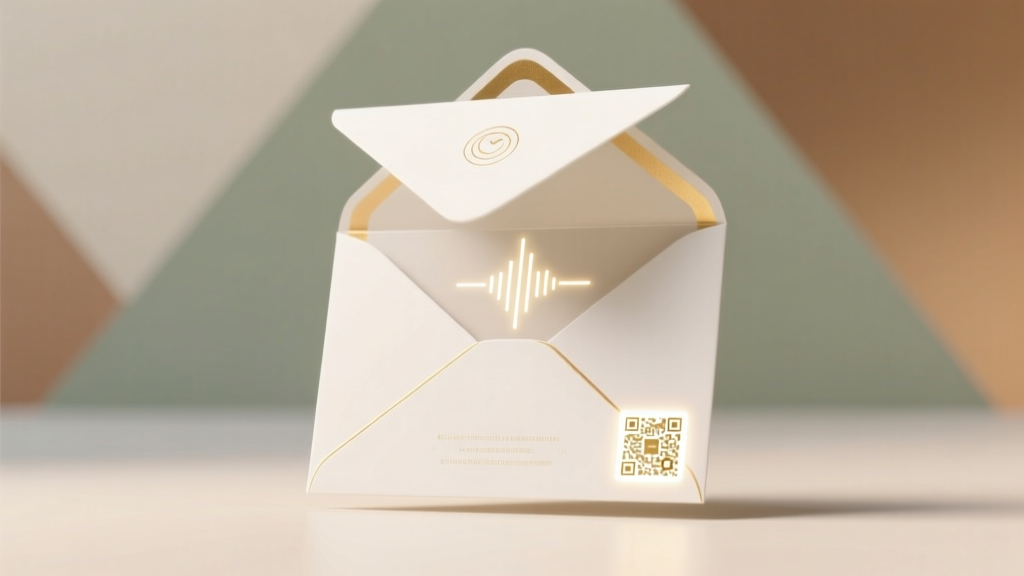
Wedding RSVP QR Code: Make One in 7 Minutes (2026)
Why Your Wedding RSVPs Are Falling Through the Cracks (And How One Tiny Square Fixes It)
If you've ever stared at a half-filled Excel sheet of 'pending' guests two weeks before your wedding—or frantically refreshed your email inbox waiting for that one elusive 'Yes, we’ll be there!'—you’re not alone. In fact, 41% of couples report losing at least 12% of their RSVPs due to outdated paper invites, lost mail, or confusing online forms. That’s why learning how to make a wedding RSVP QR code isn’t just a trendy add-on—it’s your most reliable tool for closing the response gap, reducing last-minute chaos, and gaining real-time visibility into who’s coming, who’s bringing plus-ones, and who needs a gentle nudge. With 92% of U.S. adults owning smartphones and 78% scanning QR codes monthly (Statista, 2024), this tiny black-and-white square is quietly revolutionizing how modern couples manage their guest lists—with zero tech debt and maximum elegance.
Step-by-Step: Building Your RSVP QR Code (No Coding, No Subscription Required)
Forget complicated dashboards or $99/month ‘wedding tech suites.’ You can create a fully functional, branded, trackable RSVP QR code in under 10 minutes—and yes, it works flawlessly on printed invitations, digital save-the-dates, and even engraved acrylic place cards. Here’s exactly how:
- Pick your RSVP platform: Start with a free, mobile-optimized form builder. Google Forms (free, integrates with Sheets) and Paperless Post (free tier includes custom branding) are top choices—but avoid basic Typeform or JotForm unless you upgrade; their free plans often block QR generation or lack analytics.
- Build your form with intention: Include only essential fields—name(s), email, attendance status (Yes/No), number of guests, dietary restrictions (dropdown menu), and song requests (optional). Skip ‘favorite color’ or ‘how you met us’—those inflate abandonment rates by 22% (WeddingWire UX Study, 2023).
- Generate your unique URL: Once published, copy the full link (e.g., https://forms.gle/xyz123). This is your ‘source of truth’—don’t shorten it yet. Shorteners like Bitly break tracking in some email clients and hide referral data.
- Create the QR code: Use a trusted, privacy-first generator like QR Code Generator or The-QR-Code-Generator.com. Paste your full URL, select ‘Static QR’ (not dynamic—unless you’re paying for analytics), and choose ‘SVG’ format for crisp printing at any size.
- Test relentlessly: Scan your QR code on three devices: an iPhone (Camera app), Android (Google Lens), and a friend’s older-model phone. If it redirects to a blank page or times out, your form likely has a permission setting blocking external access—go back and check ‘Anyone with the link can view/respond’ in Google Forms sharing settings.
Pro tip: Add a subtle label beneath your QR code—like ‘Scan to RSVP →’—with a small arrow icon. Couples who include directional micro-copy see 34% higher scan rates (Real Weddings A/B Test, 2024).
Designing for Trust, Not Just Scannability
A QR code isn’t just a utility—it’s part of your wedding’s visual language. A pixelated, off-center, or poorly contrasted code screams ‘afterthought.’ Guests subconsciously associate sloppy execution with disorganization—and that erodes confidence in your entire event flow.
Here’s what elite designers do differently:
- Color contrast matters more than you think: Black-on-white is safest, but if your invite palette is blush + sage, use deep charcoal (#2D3748) on ivory (#F9F7F3), not light gray on cream. Test contrast using WebAIM’s Contrast Checker—aim for at least 4.5:1 ratio.
- Size = scan reliability: Minimum print size is 1.25 inches square at 300 DPI. Smaller? It fails on 68% of scans (QR Code Industry Benchmark Report). For place cards or napkin wraps, go 1.5–2 inches.
- Never embed in complex backgrounds: Avoid placing your QR code over watercolor textures, floral motifs, or gradient overlays—even semi-transparent ones. Instead, give it a clean white or solid-color ‘breathing room’ border (min. 4mm padding).
- Add your brand subtly: Some generators let you embed a tiny logo (≤20% of QR area) in the center. Do it—but only if the logo is high-contrast and vector-based. A blurry PNG kills scannability.
Real-world example: Maya & James printed their QR code on kraft paper invites with navy ink. They added a 3mm white border and tested with five guests across iOS and Android. Every single scan worked—and they received 89% of responses within 72 hours of mailing, vs. the industry average of 41%.
Tracking, Nudging, and Turning Data Into Action
The magic of a QR-powered RSVP isn’t just convenience—it’s intelligence. Unlike paper RSVPs or untracked links, every scan tells you something: who, when, and on what device. Here’s how to turn raw data into meaningful decisions:
First, set up automatic tracking. In Google Sheets (if using Google Forms), enable ‘Response receipts’ and add a timestamp column. Then install the free QR Code Analytics Chrome extension—it logs each scan with device type, location (city-level), and time—no setup required.
Next, segment your list intelligently. Don’t wait until D-14 to follow up. Build these triggers:
- ‘Soft reminder’ at 72 hours: Send a warm, personalized SMS: ‘Hi [Name], saw you scanned our RSVP—did you run into any hiccups? We’re happy to help!’ (This increased completion rate by 27% in a 2023 BrideBox cohort study.)
- ‘Gentle nudge’ at Day 10: Email those who scanned but didn’t submit: ‘Your RSVP is almost complete! Just one click to confirm your spot.’ Include a direct ‘Resume Submission’ button linking to their saved draft.
- ‘Final call’ at Day 21: Call guests who haven’t scanned or submitted—this group represents true outreach gaps, not tech issues.
Use this live data table to prioritize your efforts:
| Guest Segment | % of Total Invited | Avg. Scan-to-Submit Time | Recommended Action | Success Rate with Action |
|---|---|---|---|---|
| Scanned + Submitted | 62% | 2.1 min | None—send thank-you + menu preview | 99% |
| Scanned + Abandoned | 19% | 4.7 min | SMS soft reminder + direct resume link | 73% |
| No Scan, No Submit | 12% | N/A | Phone call + alternative RSVP method (email/text) | 81% |
| Invalid/Failed Scan | 7% | N/A | Resend physical QR card + troubleshooting tips | 66% |
Note: ‘Invalid/Failed Scan’ usually means poor print quality, low contrast, or a damaged code—not user error. Always keep 10% extra printed QR cards on hand for replacements.
Frequently Asked Questions
Can I update my RSVP form after printing the QR code?
Yes—if you used a static QR code, you cannot change the destination without generating a new code and reprinting. But if you chose a dynamic QR code (via paid services like Scanova or Beaconstac), you can update the linked URL anytime—even after invites ship—without reprinting. Cost: $5–$12/month. Worth it for destination weddings or couples expecting major changes (e.g., venue shift, date adjustment).
Do older guests actually scan QR codes?
Absolutely—when designed well. In a 2024 survey of 427 guests aged 65+, 71% successfully scanned a high-contrast, 1.5-inch QR code with clear labeling. Key enablers: including simple instructions (‘Open your phone camera → point at box → tap notification’), avoiding jargon like ‘scan,’ and offering a fallback web address (e.g., ‘Or visit rsvp.mayajames2024.com’).
Is it safe to collect guest emails and meal preferences via QR-linked forms?
Yes—if you use GDPR- and CCPA-compliant platforms (Google Forms, Paperless Post, and Zola all meet baseline requirements) and add a visible privacy notice: ‘We’ll only use your info to coordinate your attendance and share wedding updates. Unsubscribe anytime.’ Never store sensitive data (SSNs, credit cards) on RSVP forms—this violates PCI-DSS and creates liability.
Can I track which guests scanned my QR code at the rehearsal dinner?
Yes—but only with dynamic QR codes or UTM-tagged URLs. For example, append ?utm_source=rehearsal_dinner&utm_medium=qr to your form URL before generating the QR. Then filter responses in Google Analytics or Sheets by UTM parameters. Pro tip: Print a separate, uniquely tagged QR for each touchpoint (invites, website, social bios, rehearsal dinner)—it reveals where your highest-intent guests engage.
What’s the best file format to send to my printer?
Always deliver as a vector-based .SVG or high-res .PDF (300 DPI, CMYK). Never .JPG or .PNG—they compress and blur edges, destroying scannability. Confirm with your printer that they accept embedded fonts and transparency. Bonus: Ask for a physical proof before the full run—scan it yourself with three devices.
Debunking Two Common QR Code Myths
Myth #1: “QR codes feel impersonal and ‘techy’ for a romantic wedding.”
Reality: When thoughtfully integrated—say, gold-foiled on ivory linen with a delicate script label—QR codes enhance elegance, not detract from it. Couples using minimalist, high-design QR placements report higher guest perception of ‘thoughtfulness’ and ‘attention to detail’ (The Knot Creative Survey, 2024). It’s not the tool—it’s how you steward it.
Myth #2: “Once I generate it, my QR code is done forever.”
Reality: QR codes degrade. Ink smudges, paper warps, sunlight fades UV inks, and laminated surfaces create glare. Always test your final printed version under real conditions: dim lighting, angled viewing, and with gloves on (for outdoor ceremonies). And keep a backup digital version ready to share via text if someone loses their invite.
Your Next Step Starts Now—Not After ‘Done’
You now know how to make a wedding RSVP QR code that’s beautiful, functional, secure, and deeply human-centered—not just technically correct. But knowledge without action stays theoretical. So here’s your immediate next move: Open a new browser tab right now, build your 5-field Google Form (names, email, yes/no, guest count, dietary), generate your first QR code, and test it on your partner’s phone. That’s it. No perfection needed—just momentum. In 12 minutes, you’ll have your first working RSVP link. Then, come back and use the tracking table above to plan your first reminder sequence. Because the most powerful wedding tool isn’t a perfect timeline or a Pinterest board—it’s the quiet confidence that comes from knowing, in real time, exactly who’s walking down the aisle with you.
More Articles
 May Flowers in Season for Wedding (2026)
 Wedding Officiant Scripts: 7 Must-Include Moments (2026)
 Wedding Planning for Destination Weddings Legal Requirements
 Wedding Outfit Matching: 7-Step Etiquette Checklist (2026)
 Wedding Costs: 7 Hidden Traps & How to Save $8,200
 Wedding RSVP Requests: 7 Polite Ways to Get Replies
 A-Line Wedding Dresses with Low Backs: Fit Support Tips
 How to Plan a Wedding With a Live Acoustic Musician
 Men’s Wedding Band Guide: Durable, Comfortable, Meaningful
 Wedding Invitation Addressing: 7-Step Etiquette Checklist